Desktop UI
leafpress includes a native desktop application — a menu bar / system tray app built with PyQt6. It provides the same conversion and import features as the CLI in a point-and-click interface.
Installation
The desktop UI requires the [ui] optional extra:
This installs:
- PyQt6 — the cross-platform GUI framework
- pyobjc-framework-cocoa (macOS only) — for menu bar integration
Launching
# Start in the background (menu bar / tray only)
leafpress ui

# Open the conversion window immediately
leafpress ui --show
macOS
On macOS, leafpress appears in the menu bar (top-right area). It does not appear in the Dock. Click the document icon to open the conversion window.
Linux / Windows
On Linux and Windows, leafpress appears in the system tray. Click or double-click the icon to open the conversion window.
Using the conversion window
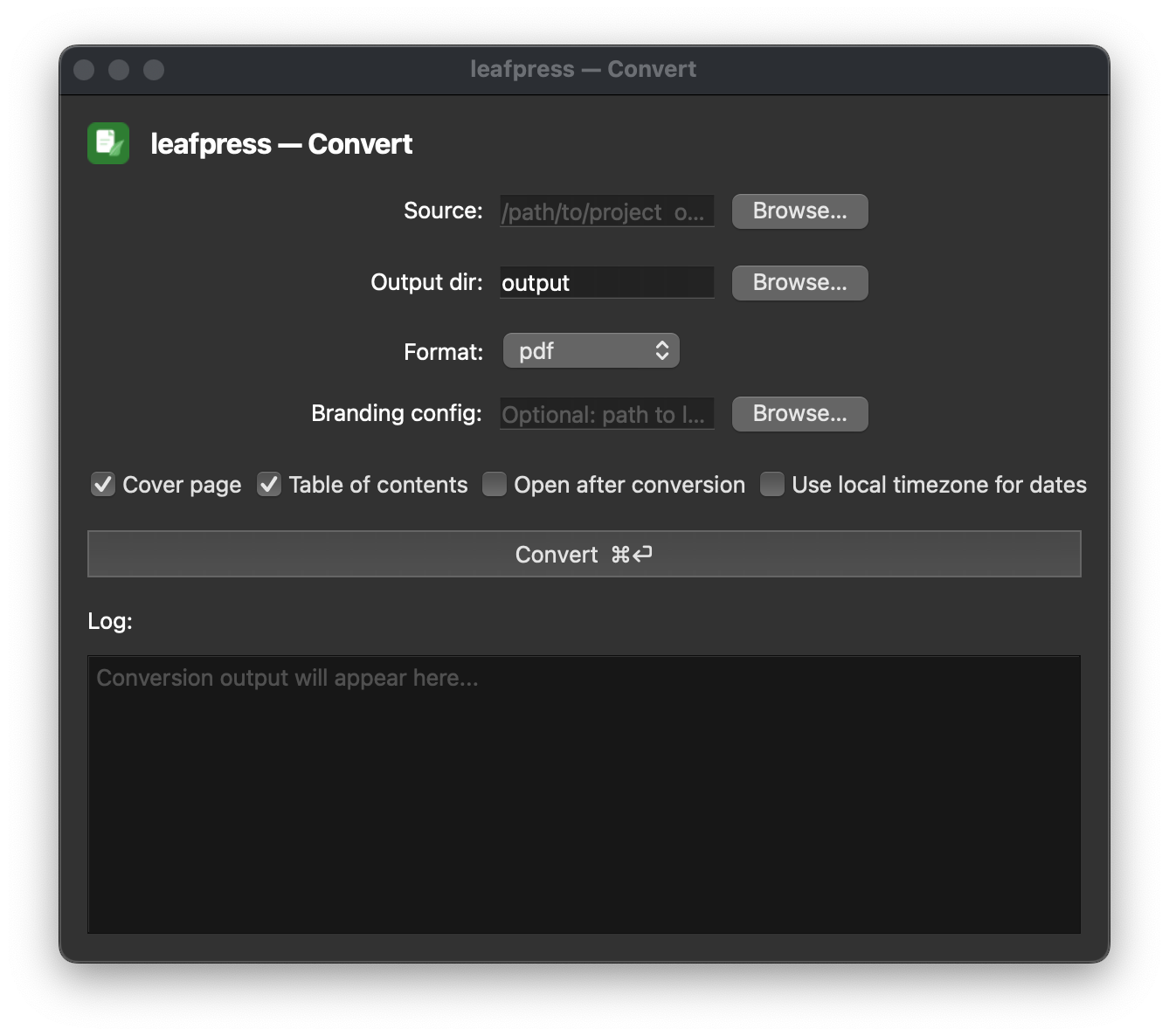
The conversion window mirrors all CLI convert options:
| Field | Description |
|---|---|
| Source | Local path to an MkDocs project, or a git URL. Use "Browse..." to pick a folder. |
| Output dir | Directory for generated files (default: output/). |
| Format | pdf, docx, html, odt, epub, markdown, both (PDF + DOCX), or all. |
| Branding config | Optional path to a leafpress.yml file. Leave blank to use auto-detection or environment variables. |
| Cover page | Include a cover page (default: checked). |
| Table of contents | Include a TOC page (default: checked). |
| Open after conversion | Automatically open the generated file(s) when done. |
Click Convert to start. A progress indicator appears while conversion runs. A dialog confirms success or shows the error message on failure.
Using the import window
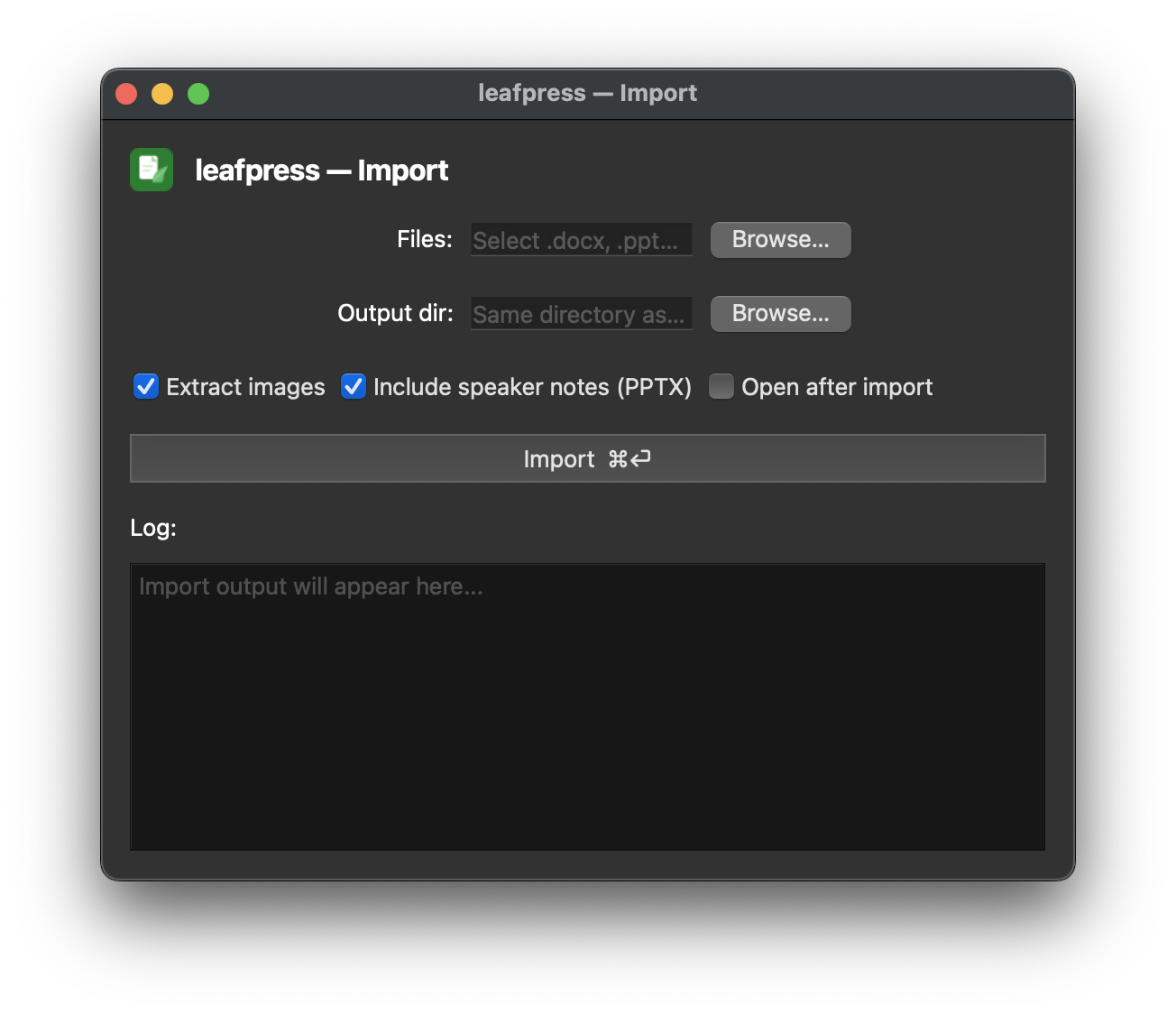
Import Word (.docx), PowerPoint (.pptx), Excel (.xlsx), and LaTeX (.tex) files to Markdown.
| Field | Description |
|---|---|
| Files | One or more .docx, .pptx, .xlsx, or .tex files to convert. Use "Browse..." to select files. |
| Output dir | Directory for generated Markdown files (default: current directory). |
| Extract images | Save embedded images alongside the Markdown output (default: checked). |
| Include speaker notes | Extract speaker notes from PowerPoint slides (default: checked). |
| Open after import | Automatically open the generated Markdown file(s) when done. |
Click Import to start. Each file is converted independently and results appear in the log area.
Tray menu
Right-click (or control-click on macOS) the tray icon for a menu:
- Open leafpress — show the conversion window
- Import files... — show the import window
- About leafpress — version info and links
- Quit leafpress — exit the application
Keeping leafpress running
leafpress stays alive in the menu bar / tray after the conversion window is closed. To quit, use the tray menu.
macOS — launch at login
To have leafpress start automatically:
- Open System Settings → General → Login Items
- Add the
leafpressexecutable or a shell script that runsleafpress ui
Or create a launchd plist at ~/Library/LaunchAgents/com.leafpress.plist:
<?xml version="1.0" encoding="UTF-8"?>
<!DOCTYPE plist PUBLIC "-//Apple//DTD PLIST 1.0//EN"
  "http://www.apple.com/DTDs/PropertyList-1.0.dtd">
<plist version="1.0">
<dict>
  <key>Label</key><string>com.leafpress</string>
  <key>ProgramArguments</key>
  <array>
    <string>/usr/local/bin/leafpress</string>
    <string>ui</string>
  </array>
  <key>RunAtLoad</key><true/>
</dict>
</plist>